









How to Choose an Interactive Flat Panel for Your Classroom: Complete Buying Guide
The projector-and-whiteboard combination that defined classrooms for two decades is being retired, and not quietly. Schools replacing that pairing with an interactive flat panel report the same three outcomes everywhere: lessons start faster because nothing needs calibrating, front-row students stop squinting because the image holds up with the lights on, and teachers actually use the touch features instead of walking back to a desk computer. The technology is mature — what separates a good purchase from a regretted one is now the selection process, not the hardware category.
This guide walks through the classroom decision in the order it should be made: screen size and viewing distance first, then visibility, writing experience, eye care, operating system and software, connectivity, and durability. It is written for the people who sign the purchase order — school IT leads, procurement committees and principals — and every recommendation can be checked against a supplier quotation line by line.
Why classrooms are moving to interactive flat panels
A classroom projector fails in ways teachers know by heart. It washes out whenever the blinds open. Its lamp dims gradually, so the image a student sees in June is not the image they saw in September. It casts a presenter shadow across every diagram. And it pairs with a separate whiteboard, separate speakers and a separate computer — three devices to maintain for one wall.
An interactive flat panel collapses all of that into one sealed unit: a 4K display bright enough for full daylight, an integrated writing surface with no consumables, built-in sound, and an onboard computer that boots into the lesson software the moment the teacher walks in. There is no bulb to replace, no alignment to fix, and no shadow — the teacher stands beside their content instead of in front of it.
For schools still weighing the upgrade, our overview of how interactive flat panels and smart classroom technology are transforming education covers the pedagogical side; this guide covers the procurement side.
Step 1: Screen size — let the classroom decide, not the budget line
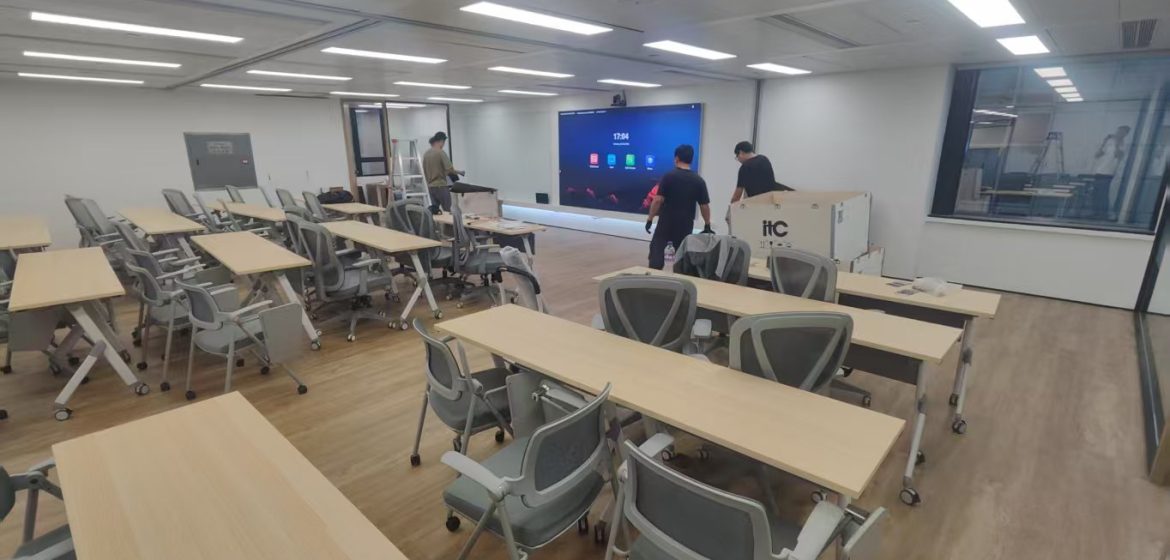
Screen size is decided by two measurements: the distance from the board to the farthest seat, and the smallest text students must read. The working rule from AV practice: character height on screen should be about 1/25 of the viewing distance. A classroom with the last row at 7 meters needs characters roughly 28 cm tall — which a 65-inch panel delivers, but a 55-inch panel does not.
| Classroom type | Farthest seat distance | Recommended panel size | Typical use |
| Small classroom / group room | up to 5 m | 55" – 65" | Primary grades, small-group instruction |
| Standard classroom | 5 – 8 m | 65" – 75" | General K-12 classrooms |
| Large classroom / merged room | 8 – 10 m | 75" – 86" | Secondary school, STEM rooms |
| Lecture hall / auditorium | 10 m and beyond | 86" – 98" or larger | University teaching, large venues |
Two practical notes. First, when a room sits between sizes, go up a size rather than adding a second panel — text legibility is a hard constraint, while panel cost differences are one-time. Second, younger classrooms benefit more from reachability than from size: a panel mounted at child height in a primary room should still be reachable across its full width, which favors 65–75 inches over oversized panels in small rooms.
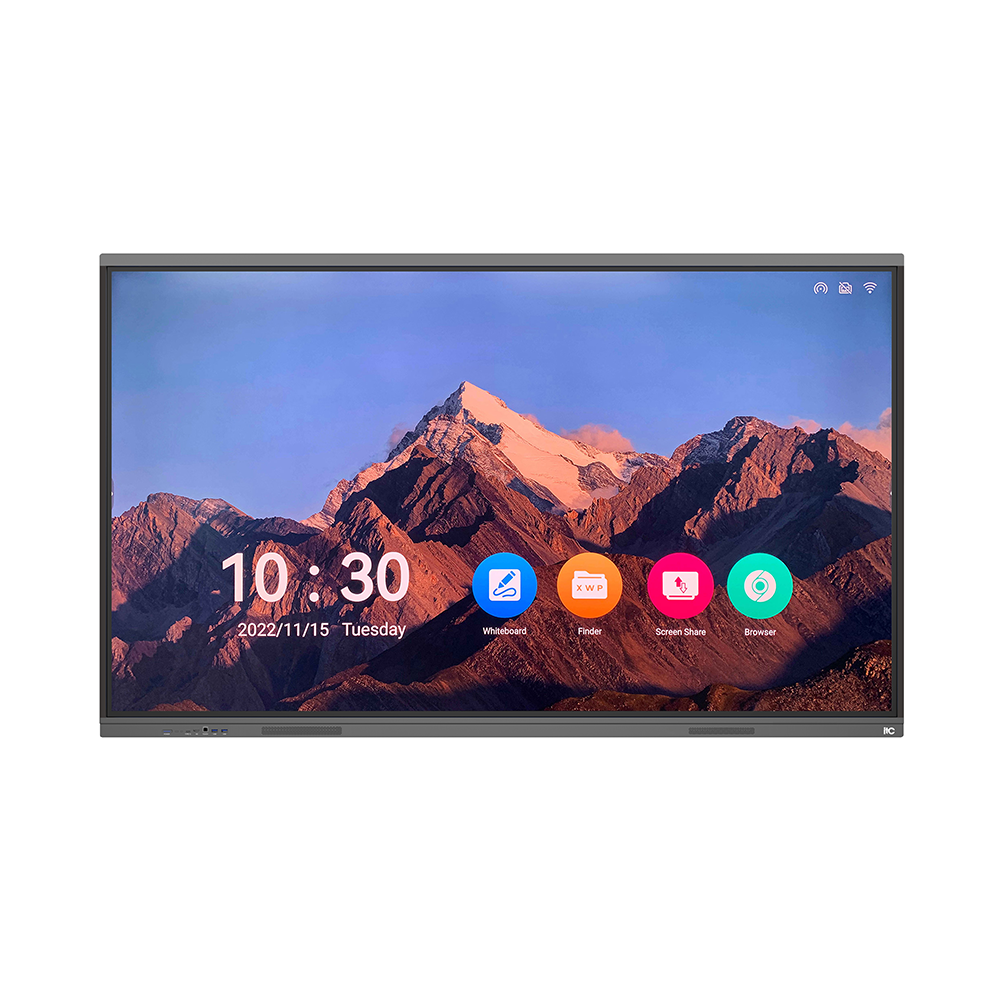
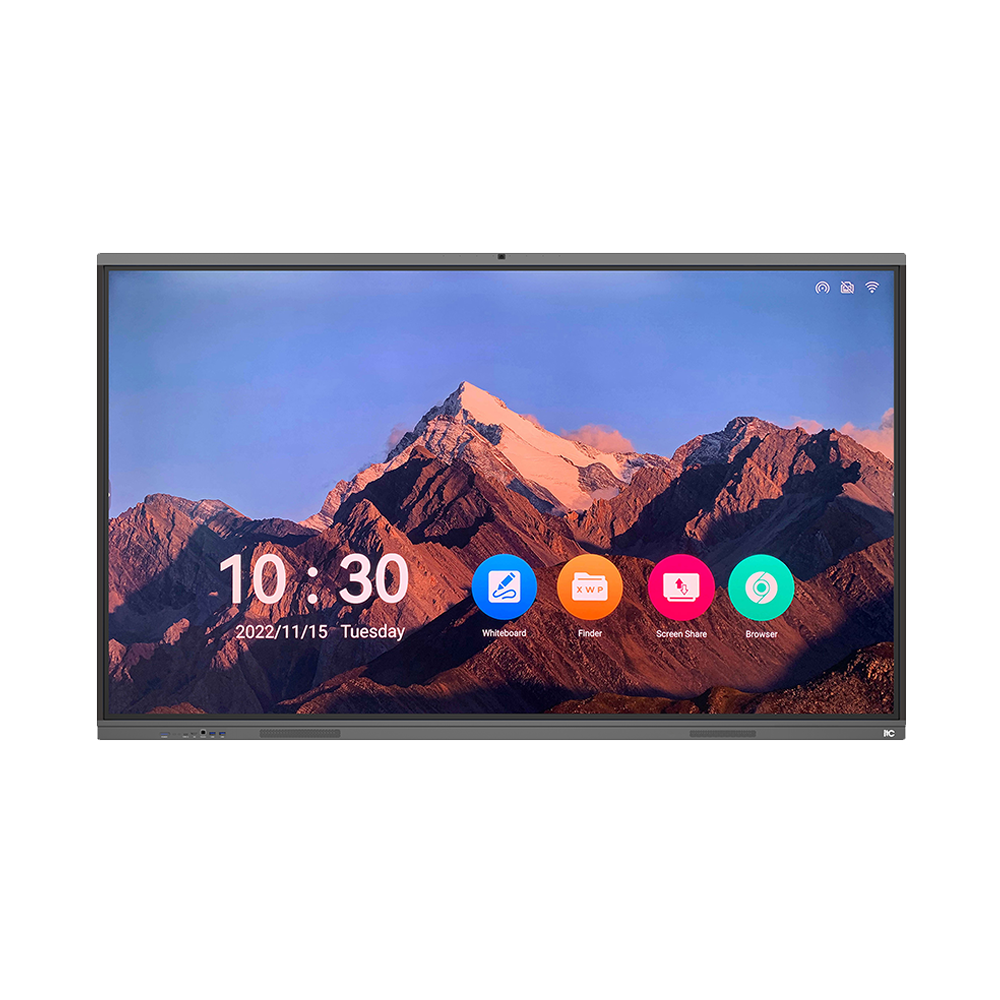
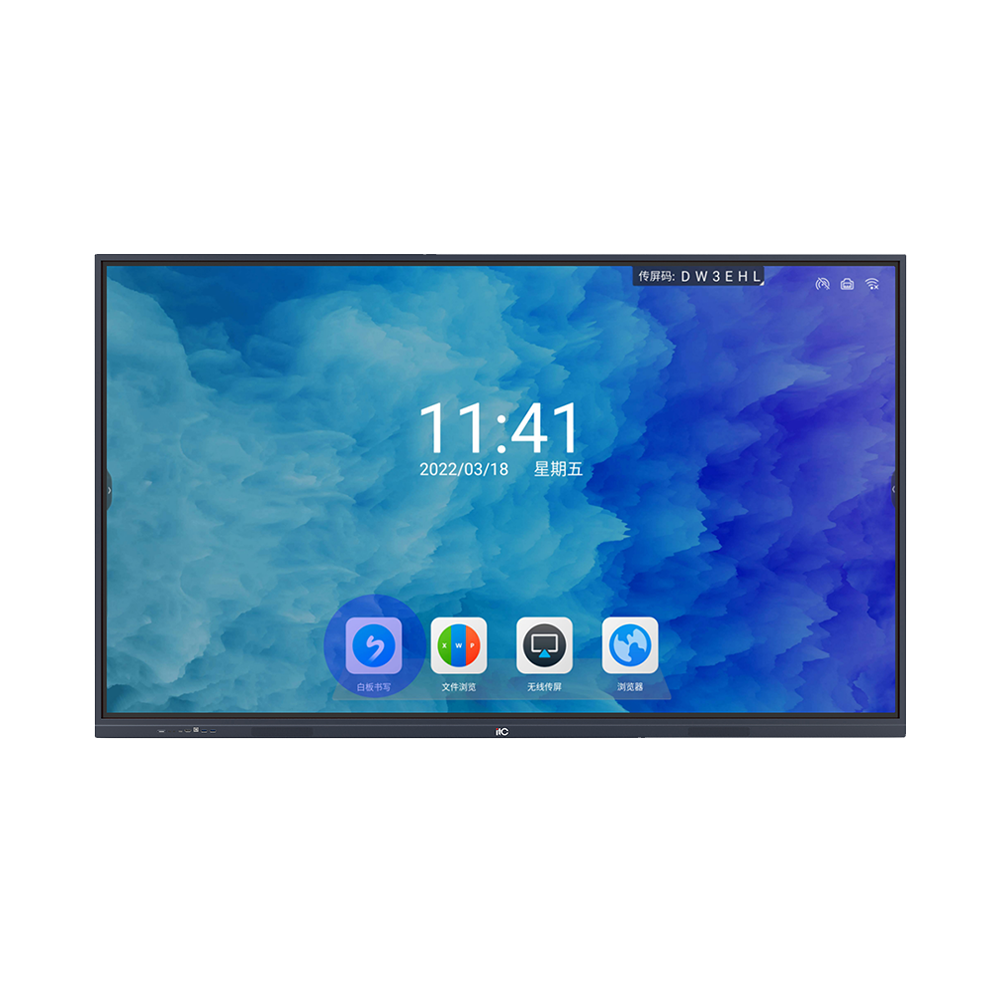
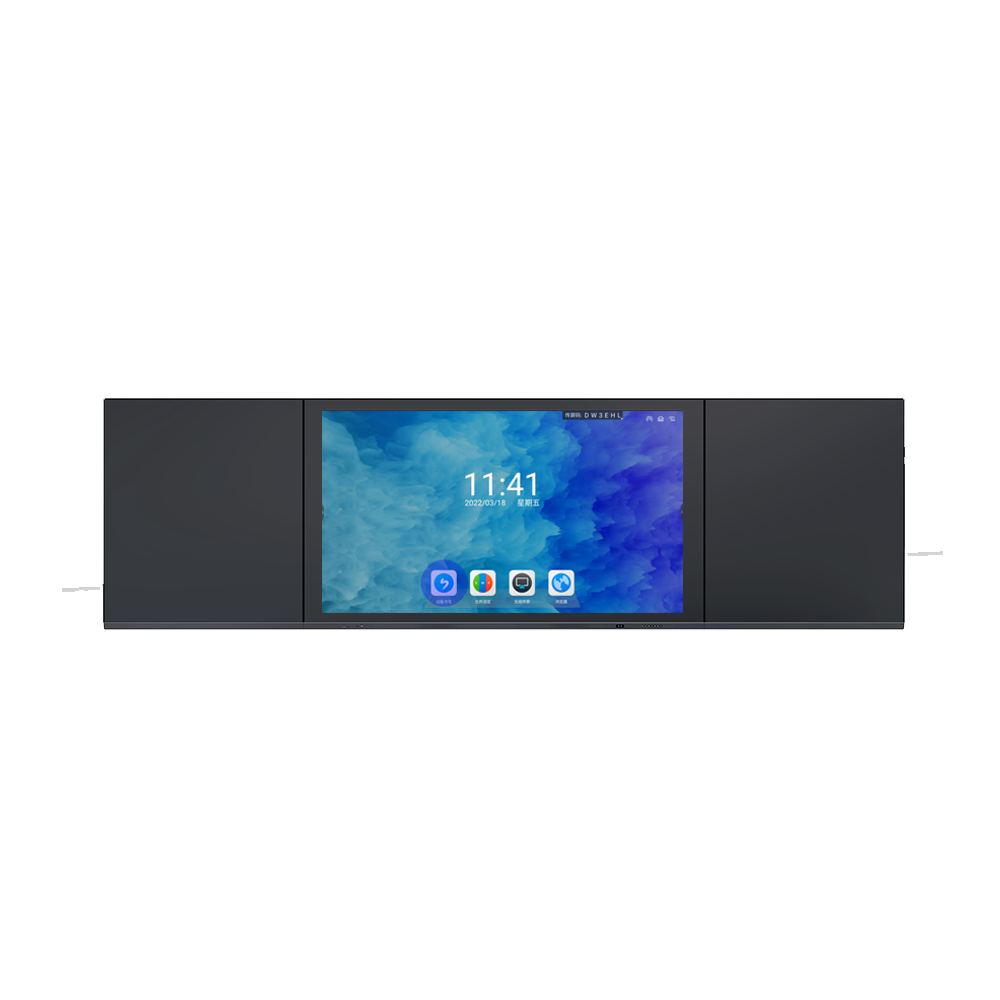
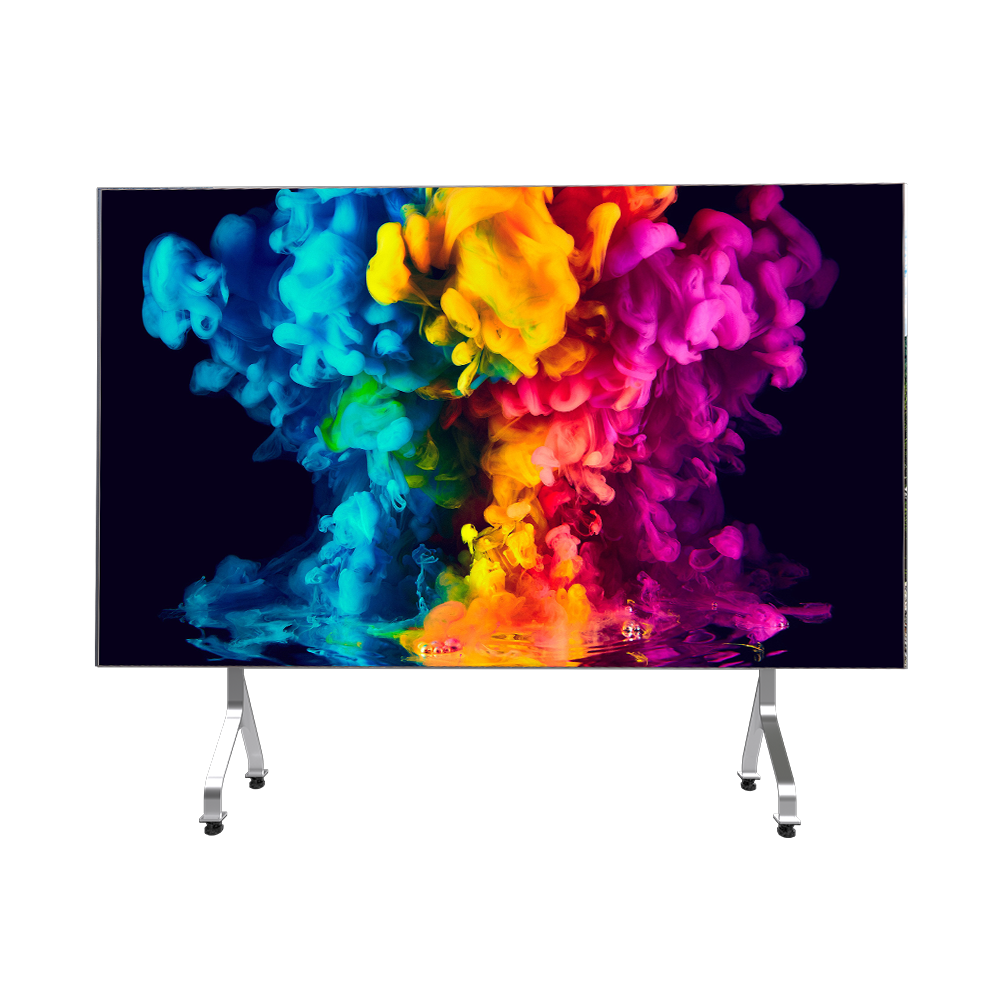
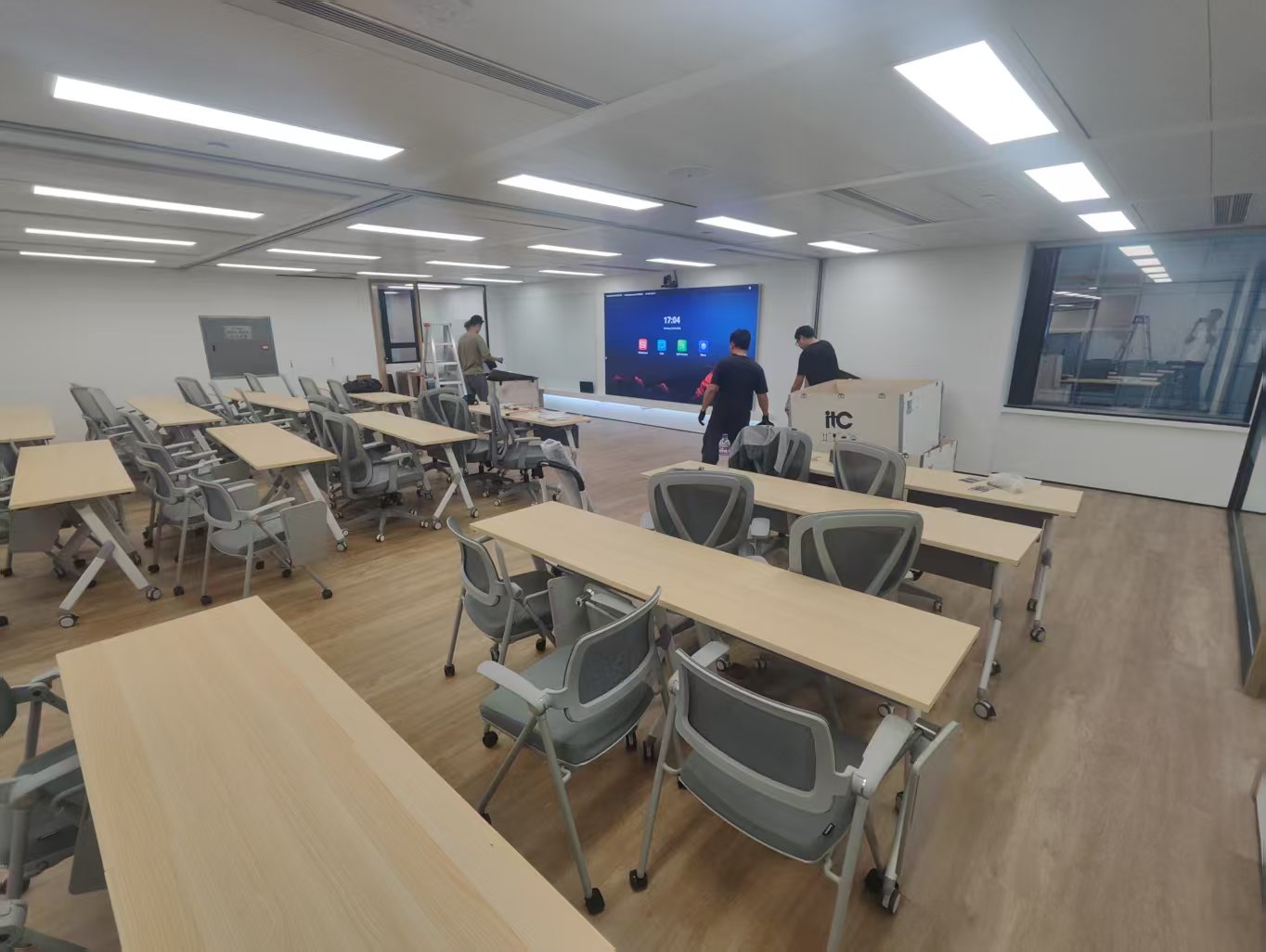
For standard classrooms, a 75-inch panel such as the itc TV-75830E education flat panel hits the balance point; large lecture spaces step up to the 98-inch TV-98830E, while rooms that want to keep a real blackboard alongside the screen use a combined unit like the 86-inch TV-86830EB smart blackboard.
Step 2: Visibility — 4K, anti-glare and color that survives daylight
Classrooms are the hardest display environment in a school: windows on one wall, lights that cannot be dimmed mid-lesson, and students at every angle. Three specifications do the work here:
- 4K UHD resolution.Below 4K, small text in spreadsheets, code and science diagrams becomes fuzzy at the back of the room. 4K is now the baseline; anything lower is a false economy.
- Anti-glare surface.A matte, anti-glare panel keeps content readable with blinds open — this is the single biggest daily-usage difference between commercial education panels and consumer TVs.
- Color coverage.Wide color gamut (the 830E series reaches 72% NTSC) keeps science diagrams, geography imagery and art content looking like the source material rather than a washed-out copy.
When comparing quotations, ask the supplier to demo the panel with the room's actual blinds open. Any panel that needs a dark room to shine will spend its whole life disappointing someone at the back.
Step 3: Touch and writing — the part teachers use every minute
Touch quality is where interactive panels are won or lost in daily use, and it breaks into four checkable items:
- Touch points.20 points is the practical minimum for whole-class activities where several students write at once; 40 points adds headroom for the largest panels and multi-group work. More than that brings no classroom benefit.
- Writing feel. The pen should feel like writing, not like dragging a mouse pointer — look for low latency and palm rejection so a hand resting on the board does not scribble.
- Annotation everywhere. The panel should let a teacher freeze and annotate over any content — a video, a PDF, a website — without switching apps. The 830E series opens an annotation layer on any interface with an unlimited writing backboard, which means the explanation never has to stop because the software changed.
- Teaching tools, not just a white canvas. Check that the built-in tools cover real classroom needs: tables, rulers and drawing tools, subject-specific aids like topology diagrams, and the ability to move, zoom and erase writing content by area. The student engagement research is consistent on this point — panels get used when the tools match the lesson, not the marketing demo.
One often-missed feature worth requesting: two-way control with a phone. The 830E series lets the teacher control the panel from a mobile phone — writing, endorsing and pushing files from anywhere in the room — which quietly solves the "teacher is pinned to the front" problem that projectors created.
Step 4: Eye care and safety — the specification parents ask about
Students look at the front wall for hours a day, so eye-care specifications deserve the same weight as image quality:
- Flicker-free driving and low blue light output reduce the fatigue associated with long lessons; certified eye-care programs (TÜV-type certification) are worth requesting by name in the tender.
- Anti-glare glass does double duty for comfort and safety — it removes reflections without the mirror-gloss of consumer panels.
- Safety glass. Classroom panels need tempered safety glass (4 mm or thicker on quality units) that survives backpacks, balls and years of contact; ask for the glass specification in writing.
- Germ-resistant surfaces are increasingly requested for shared-touch environments; confirm whether the surface coating includes antimicrobial treatment if that matters to your school's health policy.
Step 5: Operating system and software — plan for ten years, not one lesson
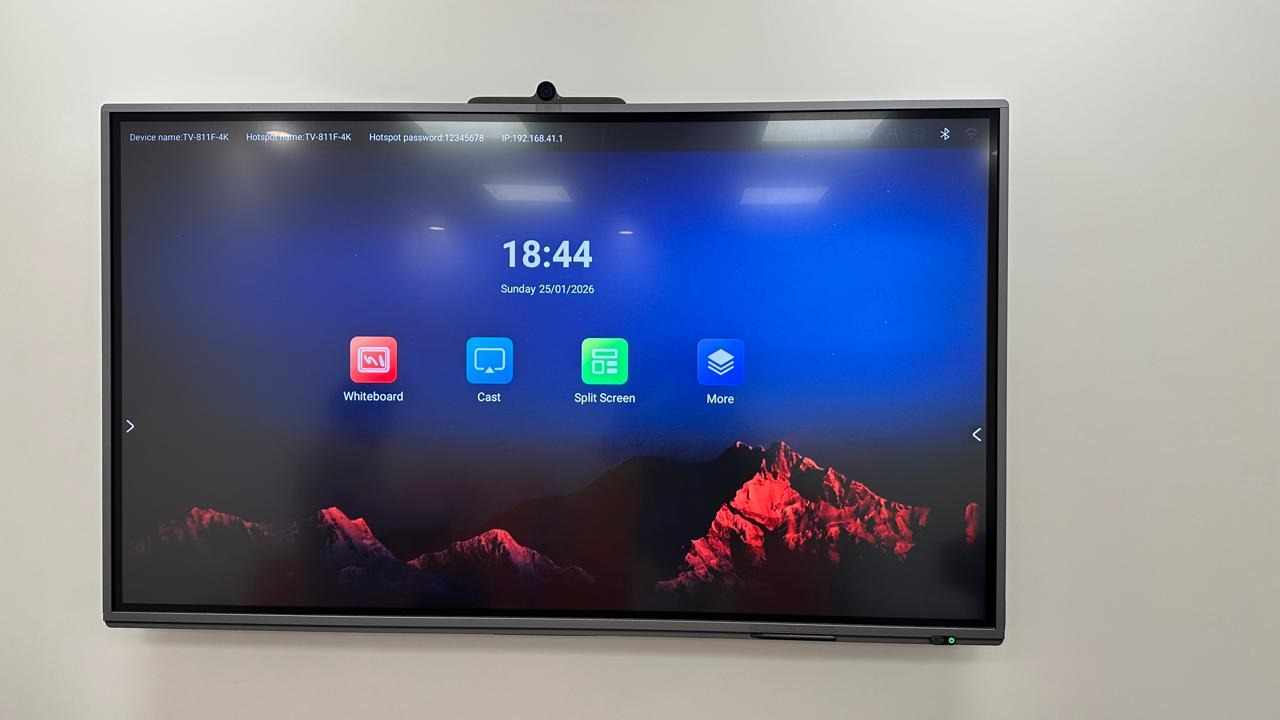
The most future-proof configuration for schools is a dual-system panel: Android built in, Windows available on demand. Android boots instantly into the teaching interface and whiteboard; Windows (usually via a removable OPS module) runs the full desktop software the school already owns. The 830E series implements exactly this pattern — both systems run simultaneously with quick switching, shared data, and double protection if one system has a problem.
Three questions to ask every supplier:
- Which system runs which lesson software? Map your school's actual software stack (office suite, subject software, assessment platform, LMS) to a system, and confirm it runs on the panel natively — not through a workaround.
- Can the computing module be upgraded? OPS-slot designs let the school swap the Windows module in five years without replacing the panel — the difference between a five-year and a ten-year investment.
- How do teachers' own devices connect? Casting from laptops and phones should work without cables and without an IT support ticket; the comparison of education and conference panel requirements notes that classrooms and meeting rooms stress this differently, so verify against your own use case.
Step 6: Connectivity — count the ports before the demo
A classroom panel needs to survive contact with everything a school plugs into it. The practical checklist: at least two HDMI inputs for legacy devices and document cameras, touch-capable USB (USB-C where possible, so one cable carries video, touch and audio), front-facing ports for student use, network connectivity for cloud content and remote management, and enough USB-A ports for the wireless-casting dongle plus a keyboard. Bring the school's actual cable bag to the demo and plug everything in — missing adapters are the classic day-one discovery.
Step 7: Durability and total cost of ownership
Education panels are commercial displays, and the difference from consumer TVs is structural: panels rated for 16+ hours of daily operation, lifespans around 50,000 hours (roughly 10–15 school years), tempered glass, and lockable system settings that survive curious students. When comparing quotations, weigh:
- Warranty length and on-site response— a classroom out of action costs more than the panel difference;
- Serviceability— modular power supplies and user-replaceable Android/OPS modules extend life;
- Remote management— school IT should see every panel's status from one console instead of visiting forty rooms.
Installation: wall mount or trolley, and the height question
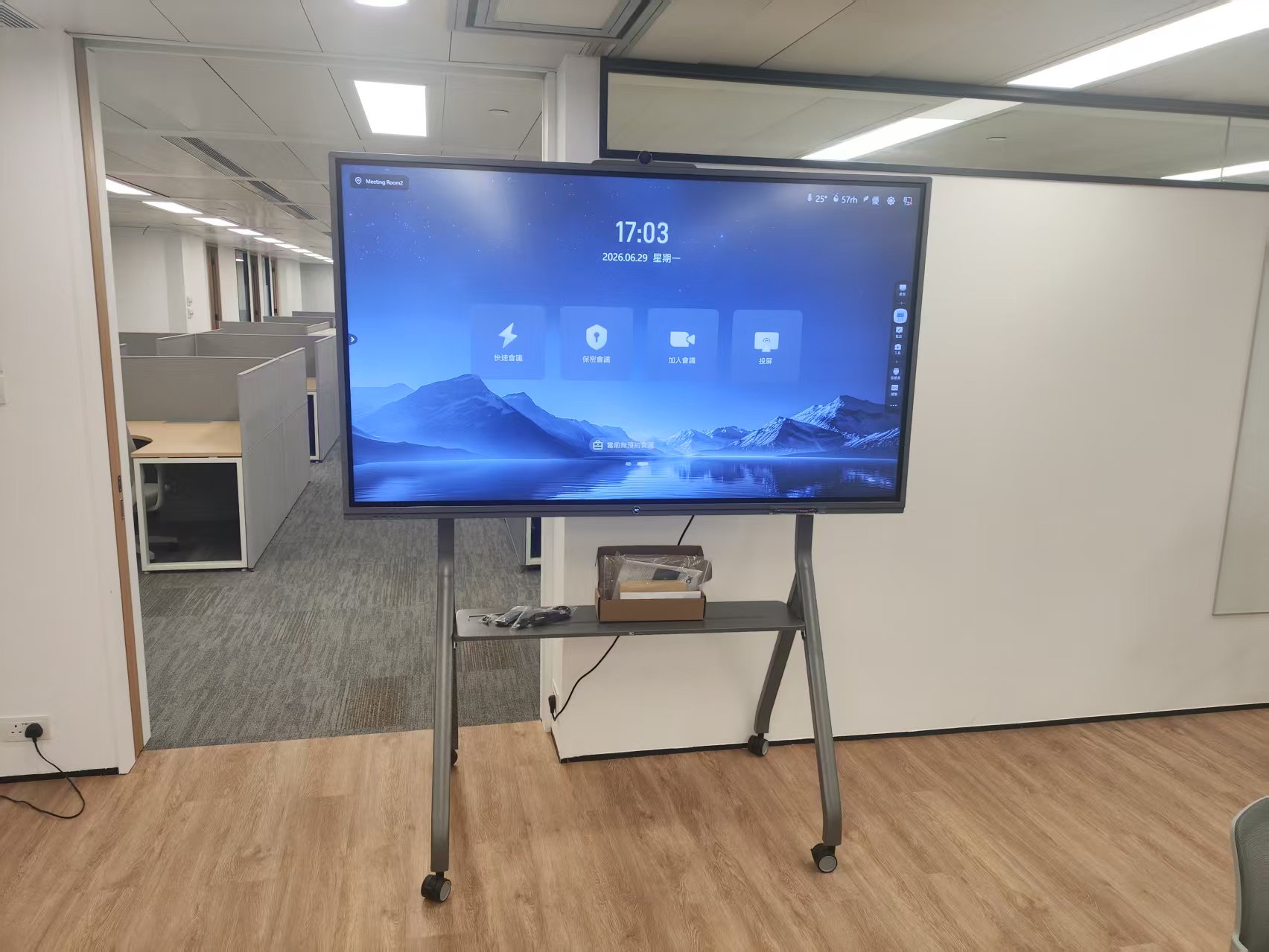
Most classrooms wall-mount the panel, which needs a structurally sound wall and cable routing through conduit. Mobile trolleys suit shared-panel schools and flexible learning spaces. The height decision matters more than schools expect: the panel's usable touch area must be reachable by the shortest regular users — in primary rooms that often means mounting lower than the "looks right" position, or choosing a trolley with height adjustment. Confirm with the supplier who performs the structural check and how cables land on the wall before accepting the installation quote.
The classroom panel buying checklist
- Panel size matched to farthest-seat distance (text height ≈ distance ÷ 25).
- 4K UHD with a demonstrated anti-glare surface under the room's real lighting.
- 20+ touch points, pen with palm rejection, low-latency writing.
- Annotation over any content, with an unlimited writing canvas and real teaching tools.
- Certified eye-care package: flicker-free, low blue light, tempered safety glass.
- Android + Windows (OPS) dual system, with the school's software mapped to a system.
- Upgradeable computing module and remote management for school IT.
- Port count verified against the school's real devices, USB-C preferred.
- Commercial-grade build: 16/7 rating, ~50,000-hour panel, written warranty.
- Mounting height checked against the shortest regular users.
Frequently asked questions
What size interactive flat panel does a standard classroom need?
For a typical classroom with the last row 5–8 meters out, 65–75 inches is the range, with 75 inches the safest default for reading small text. Small group rooms work at 55–65 inches; large lecture spaces need 86–98 inches.
Is an interactive flat panel really better than a projector?
For daily teaching, yes on every practical axis: the image survives daylight, brightness never decays, writing needs no consumables, there is no presenter shadow, and one device replaces projector, whiteboard, speakers and classroom computer.
How many touch points does a classroom panel need?
20 is the practical minimum for multi-student activities; 40 adds headroom for large panels. Beyond that, more touch points bring no measurable classroom benefit.
Why do education panels use two operating systems?
Android gives instant boot, the teaching interface and whiteboard; Windows runs the school's existing desktop software via an OPS module. Together they cover both worlds, and a removable module makes the panel upgradeable instead of disposable.
How long does a classroom interactive panel last?
Commercial education panels are rated around 50,000 operating hours — roughly ten to fifteen school years at normal usage — with lifespan heavily dependent on build quality and the ability to replace computing modules rather than the whole panel.
From shortlist to purchase order
The selection sequence that works: measure the room, size the panel from the farthest seat, verify visibility with the blinds open, test the writing feel with a real lesson, map your software to a system, and make the school's IT lead count the ports. Suppliers who walk that sequence with you are worth shortlisting; the ones who lead with a spec sheet are selling inches.
itc's education range — from the 75-inch 830E classroom panel to the 98-inch large-venue model and the combined smart-blackboard 830EB — is built on exactly the dual-system, anti-glare, annotation-first architecture described above. Browse the full education interactive flat panel range or contact our team with your classroom list for a per-room size and configuration proposal.
Related Posts
-
 Aug 27,2026
itc Once Again Named One of Top 500 Chinese Brands
Recently, the 2026 China Brand Festival, themed “Overseas Expansion and Ecosystem,” was held in Beijing, where…
-
 Dec 09,2023
itc Honored as 2023 Guangdong Province Intellectual Property Demonstration Enterprise
Warm Congratulations! Guangdong Baolun Electronics Co., Ltd. was successfully selected as the "2023 Guangdong Province Intellectual…
-
 Aug 01,2023
Good news! itc CEO won the Outstanding Entrepreneur Award!
From July 26th to 27th, the 12th China Finance Summit and Sustainable Business Conference·2023 was held in Beijing…